This document is autogenerated from generate_ui_documentation.py. Do not edit this document directly.
Drive Updates Shows the updates that the controller is applying to the open-loop drive signal based on error correction. The plot is shown in the complex plane with real part on the horizontal axis and imaginary part on the vertical axis. The drive updates shown correspond to those applied to the selected drive channel and sine tone in the Drive Signal Selector box.
Signal Level Runs the control at a modified test level. Often used to investigate control accuracy at a lower level without potentially damaging the test article.
Partial Environment If checked, this will enable the user to select only specific sine tones or specific time ranges over which to run the environment, which can be useful to investigate poor control in specific tones or over specific modes of the structure.
Partial Environment Tone Selector Only tones selected in this list will be run if the Partial Environment checkbox is checked.
Partial Environment Start Time If the Partial Environment checkbox is checked, the environment will start at the time specified inthis box.
Partial Environment End Time If the Partial Environment checkbox is checked, the environment will end at the time specified inthis box.
Start Environment Starts the environment controlling to the specified sine tones.
Stop Environment Stops the environment manually.
Save Control Data Saves the current control data from the test.
Response Amplitude Plot Plots the response amplitude compared to the specification for the selected control channel and sine tone. Additionally plots warning and abort limits if specified.
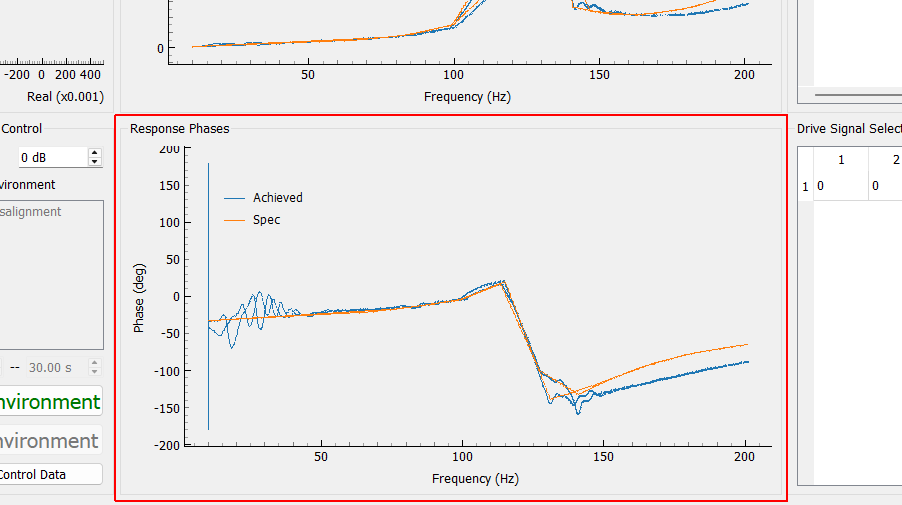
Response Phase Plot Plots the response phase compared to the specification for the selected control channel and sine tone.
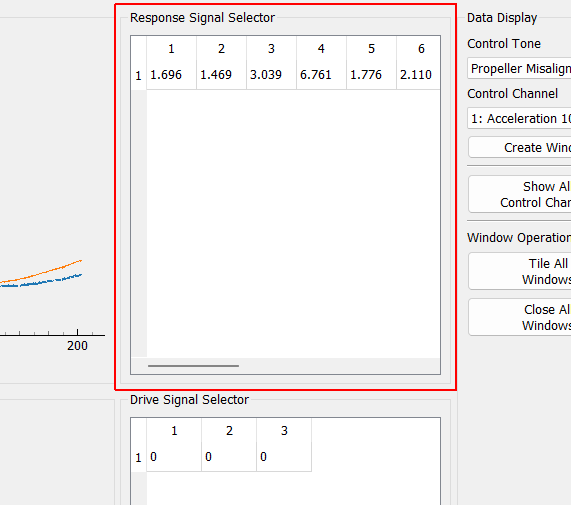
Response Signal Selector Shows the decibel error of each control signal (column) and sine tone (row). Selecting a cell will update the signals plotted in the Response Amplitude and Response Phase plots. Cells will be highlighted in yellow if they hit warning limits and highlighted in red if they hit abort limits.
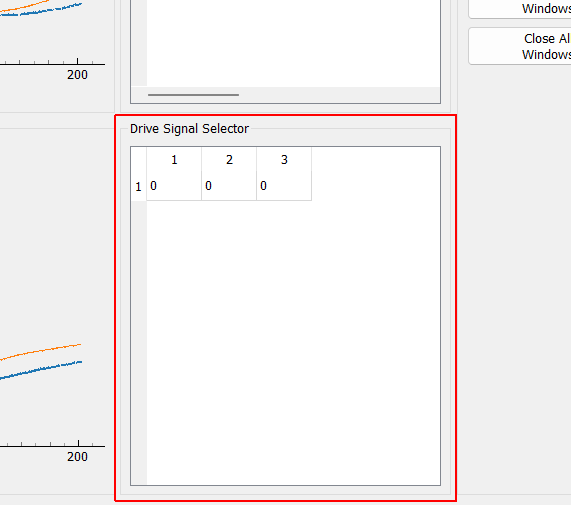
Drive Signal Selector Shows the magnitude of the closed-loop updates applied to the drive signals for each drive signal (column) and sine tone (row). Selecting a cell will display that drive signal and sine tone in the Drive Updates plot.
Control Tone Selector Selects the sine tone that will be displayed in the window that is created when the Create Window button is clicked.
Control Channel Selector Selects the control channel that will be displayed in the window that is created when the Create Window button is clicked.
Create Window Create a window to show the signal specified by the selected Control Channel and Control Tone
Show All Control Channels Creates a display window for each control tone and control channel combination in the test and tiles them on the main monitor.
Tile All Windows Tile all open display windows across the main monitor
Close All Windows Closes all existing visualization windows
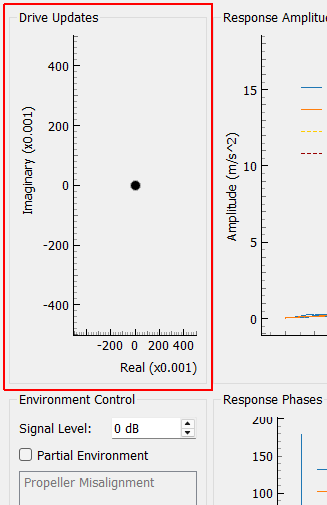
Drive Updates
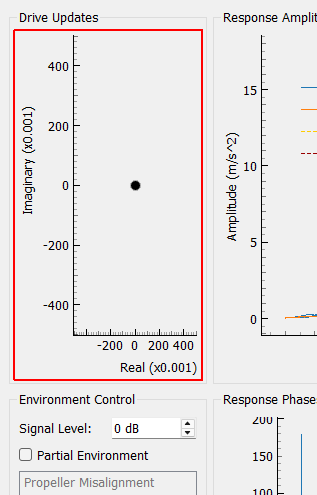
Drive Updates Shows the updates that the controller is applying to the open-loop drive signal based on error correction. The plot is shown in the complex plane with real part on the horizontal axis and imaginary part on the vertical axis. The drive updates shown correspond to those applied to the selected drive channel and sine tone in the Drive Signal Selector box.
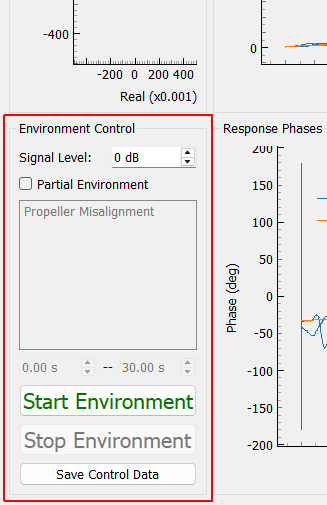
Environment Control
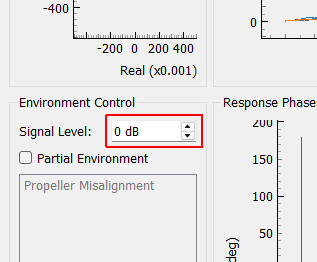
Signal Level Runs the control at a modified test level. Often used to investigate control accuracy at a lower level without potentially damaging the test article.
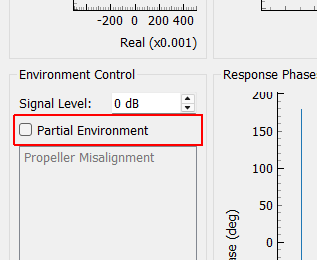
Partial Environment If checked, this will enable the user to select only specific sine tones or specific time ranges over which to run the environment, which can be useful to investigate poor control in specific tones or over specific modes of the structure.
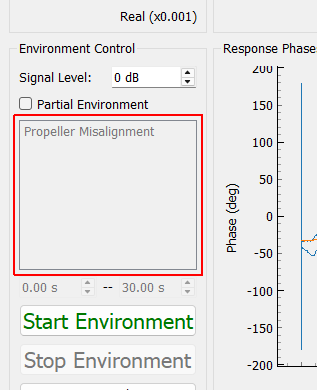
Partial Environment Tone Selector Only tones selected in this list will be run if the Partial Environment checkbox is checked.
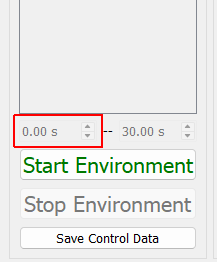
Partial Environment Start Time If the Partial Environment checkbox is checked, the environment will start at the time specified inthis box.
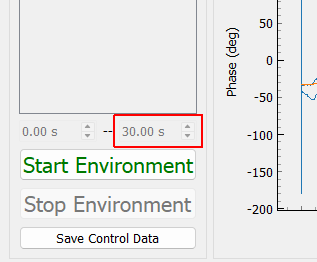
Partial Environment End Time If the Partial Environment checkbox is checked, the environment will end at the time specified inthis box.
Start Environment Starts the environment controlling to the specified sine tones.
Stop Environment Stops the environment manually.
Save Control Data Saves the current control data from the test.
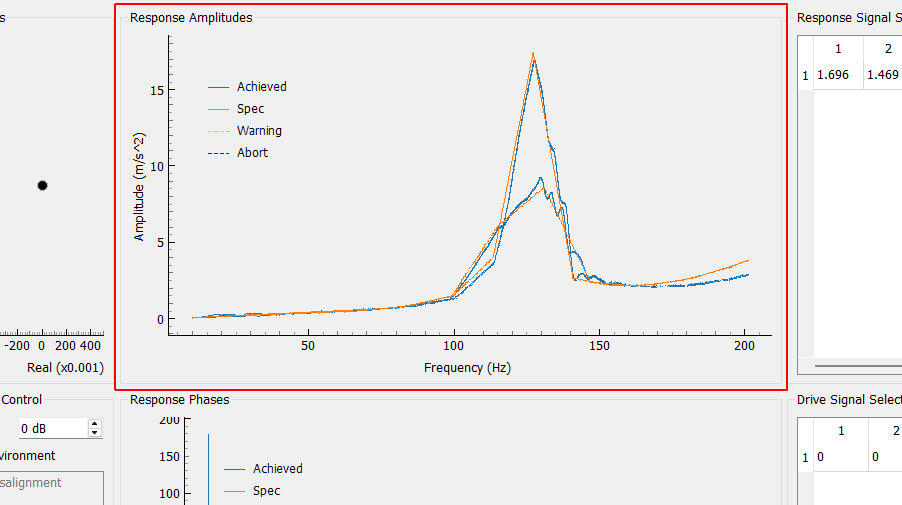
Response Amplitudes
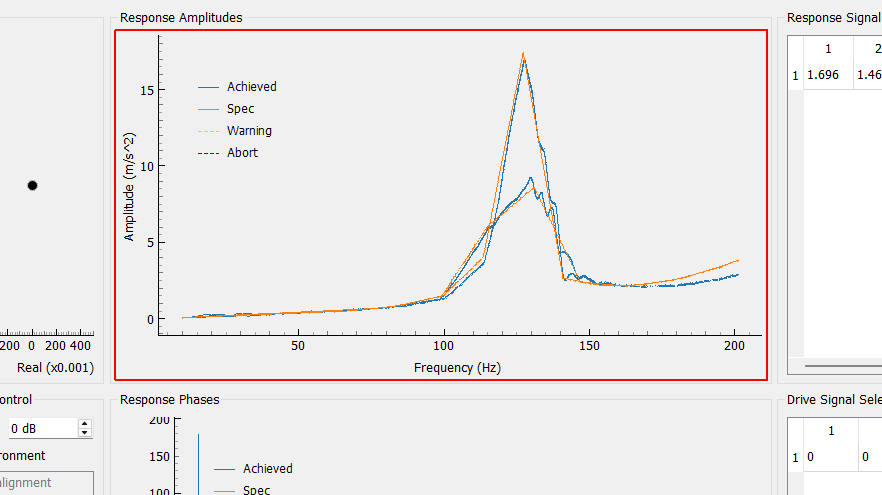
Response Amplitude Plot Plots the response amplitude compared to the specification for the selected control channel and sine tone. Additionally plots warning and abort limits if specified.
Response Phases
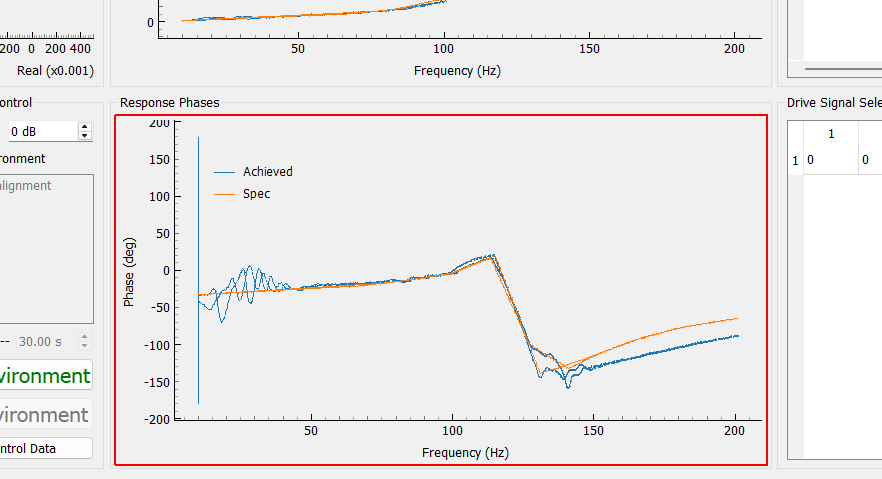
Response Phase Plot Plots the response phase compared to the specification for the selected control channel and sine tone.
Response Signal Selector
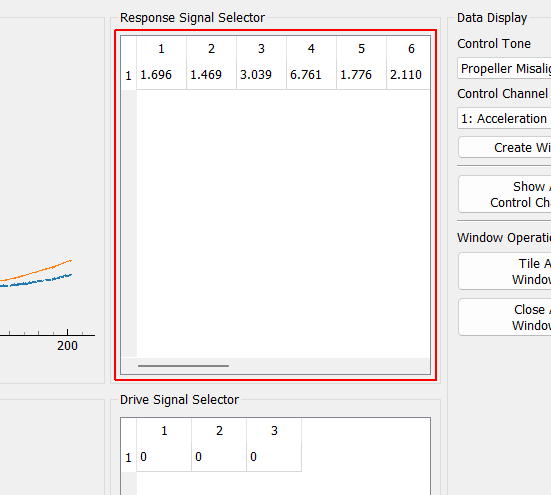
Response Signal Selector Shows the decibel error of each control signal (column) and sine tone (row). Selecting a cell will update the signals plotted in the Response Amplitude and Response Phase plots. Cells will be highlighted in yellow if they hit warning limits and highlighted in red if they hit abort limits.
Drive Signal Selector
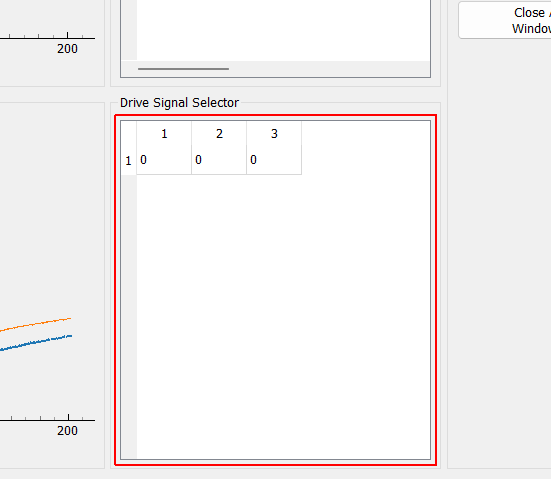
Drive Signal Selector Shows the magnitude of the closed-loop updates applied to the drive signals for each drive signal (column) and sine tone (row). Selecting a cell will display that drive signal and sine tone in the Drive Updates plot.
Data Display
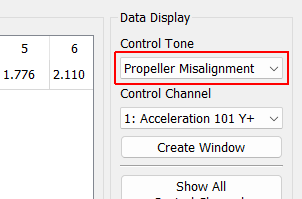
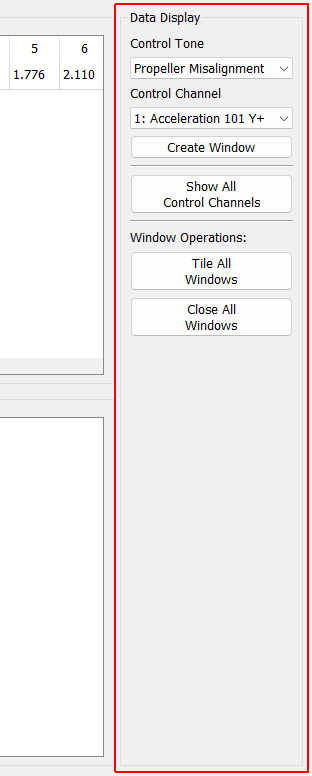
Control Tone Selector Selects the sine tone that will be displayed in the window that is created when the Create Window button is clicked.
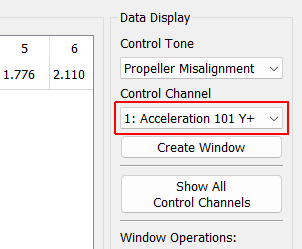
Control Channel Selector Selects the control channel that will be displayed in the window that is created when the Create Window button is clicked.
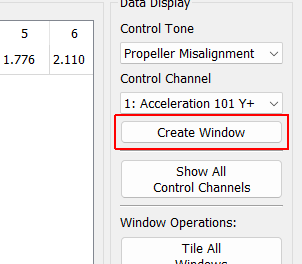
Create Window Create a window to show the signal specified by the selected Control Channel and Control Tone
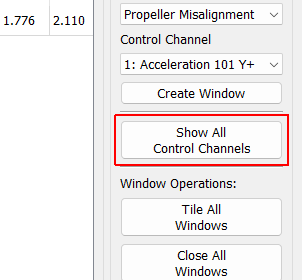
Show All Control Channels Creates a display window for each control tone and control channel combination in the test and tiles them on the main monitor.
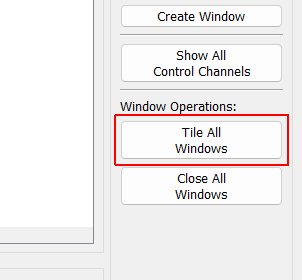
Tile All Windows Tile all open display windows across the main monitor
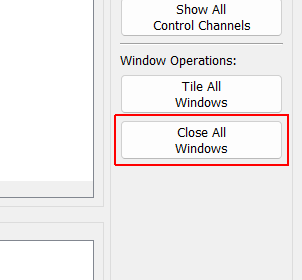
Close All Windows Closes all existing visualization windows