This document is autogenerated from generate_ui_documentation.py. Do not edit this document directly.
Preview Acquisition Starts the acquisition in Preview mode which will not save data to the disk nor will it stop automatically when the requested number of averages is reached.
Start Acquisition Starts the acquisition and stores data to the disk. Acquisition will stop automatically when the requested number of averages is reached.
Stop Acquisition Stops the currently active acquisition.
Data File File to which modal data is written from Rattlesnake. Note that writing modal data to a network drive can cause the user interface to hang if the files are large and the network is relatively slow.
Select File... Opens a file dialog to allow the user to select a file to which data will be saved. For large tests, it is not recommended to write data directly to a network drive, as relatively slow network speeds may cause the user interface to hang while the file is being written.
Auto-Increment Select this to automatically add a 4-digit number to the file name that will increment automatically. This can be useful for roving hammer excitation where the user does not want to accidentally overwrite previous data.
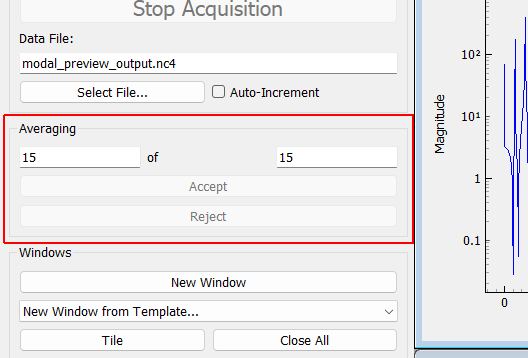
Average Count Current number of averages acquired
Total Averages Total number of averages that will be acquired during the test, after which data acquisition will shut down automatically if not in preview mode.
Accept Manually accept the current measurement frame. This button will be disabled unless Manual acceptance is specified.
Reject Manually reject the current measurement frame. This button will be disabled unless Manual acceptance is specified.
New Window Create a new data visualization window.
New Window from Template... Create a visualization window from a set of preset templates of commonly requested visualizations, such as drive point FRFs or reference autospectra.
Tile Tile all visualization windows
Close All Close all visualization windows.
<< (Decrement Channels) Decrement channels in visualization windows by the specified number of channels, except for windows that are locked.
>> (Increment Channels) Increment channels in visualization windows by the specified number of channels, except for windows that are locked.
Channel Increment Select the number of channels to increment all windows by. This is useful to quickly move through all channels in a test.
Degree of Freedom Override Table This table can be used during roving hammer testing, or other testing that involves changing the channel degrees of freedom, to change channel names during a test without needing to update the channel table and re-initialize the data acquisition system. The user selects a channel to update and provides a new node number and new direction string. Subsequently acquired data will have degree of freedom information updated in the channel table that gets stored to the disk with the data.
Add Override Adds an override to the channel table to change the degree of freedom associated with a given channel. Useful for roving hammer or roving accelerometer testing.
Remove Override Removes the selected channel override.
Display Area New windows will be placed in this area, allowing flexible visualization of modal data during the test.
Signal Type Selector Select the type of data to look at.
Channel Selector Select the channel to look at.
Reference Channel Selector Select the reference to look at.
Data Display Selector Select how the data is displayed.
Lock Locks the channel so it does not update when the increment channels buttons are clicked. Channel can still be manually changed.
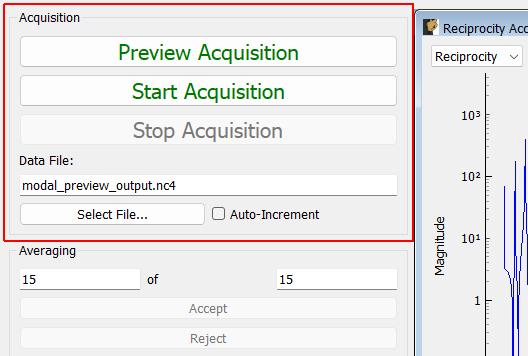
Acquisition
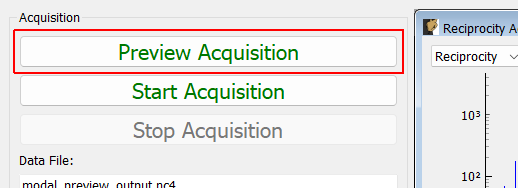
Preview Acquisition Starts the acquisition in Preview mode which will not save data to the disk nor will it stop automatically when the requested number of averages is reached.
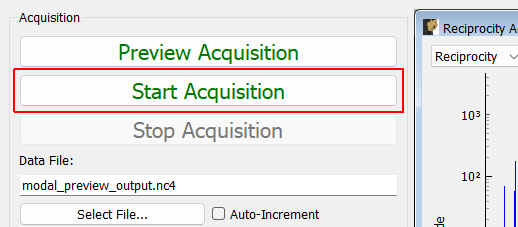
Start Acquisition Starts the acquisition and stores data to the disk. Acquisition will stop automatically when the requested number of averages is reached.
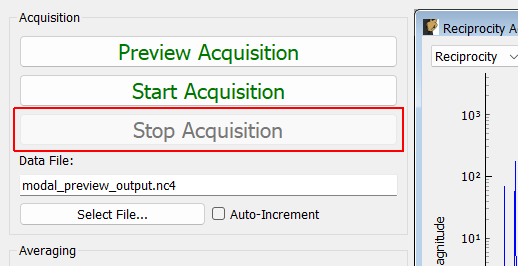
Stop Acquisition Stops the currently active acquisition.
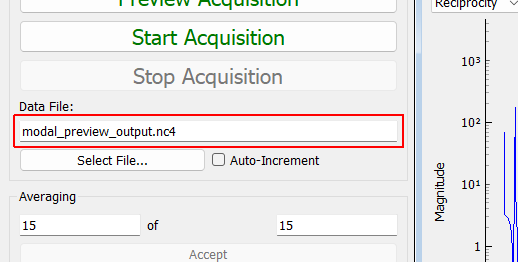
Data File File to which modal data is written from Rattlesnake. Note that writing modal data to a network drive can cause the user interface to hang if the files are large and the network is relatively slow.
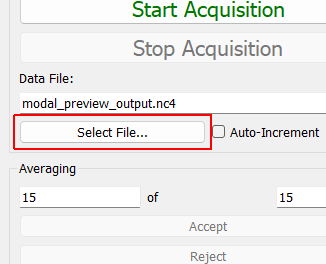
Select File... Opens a file dialog to allow the user to select a file to which data will be saved. For large tests, it is not recommended to write data directly to a network drive, as relatively slow network speeds may cause the user interface to hang while the file is being written.
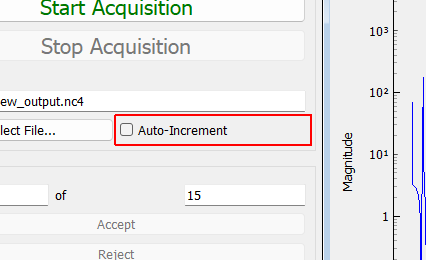
Auto-Increment Select this to automatically add a 4-digit number to the file name that will increment automatically. This can be useful for roving hammer excitation where the user does not want to accidentally overwrite previous data.
Averaging
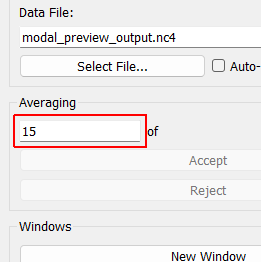
Average Count Current number of averages acquired
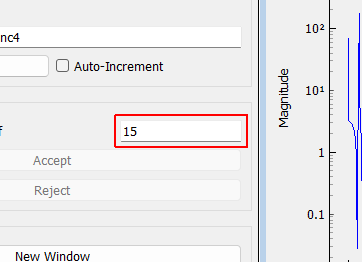
Total Averages Total number of averages that will be acquired during the test, after which data acquisition will shut down automatically if not in preview mode.
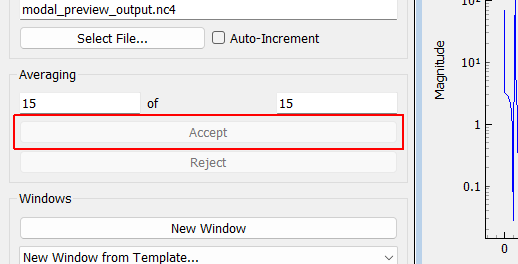
Accept Manually accept the current measurement frame. This button will be disabled unless Manual acceptance is specified.
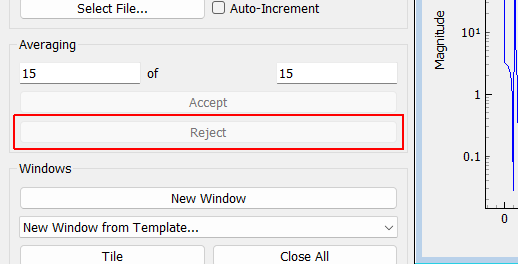
Reject Manually reject the current measurement frame. This button will be disabled unless Manual acceptance is specified.
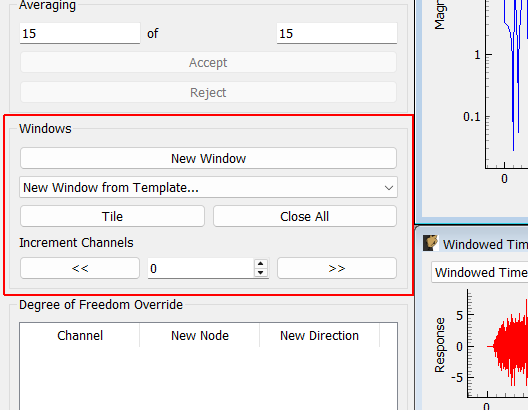
Windows
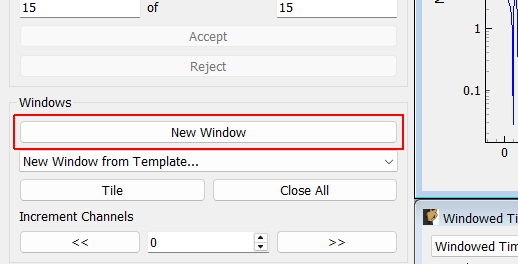
New Window Create a new data visualization window.
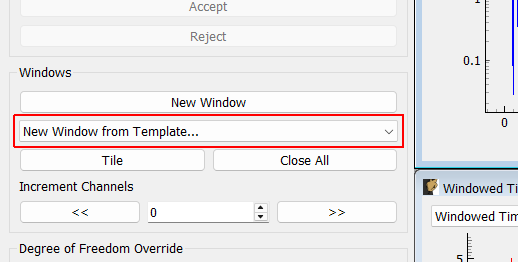
New Window from Template... Create a visualization window from a set of preset templates of commonly requested visualizations, such as drive point FRFs or reference autospectra.
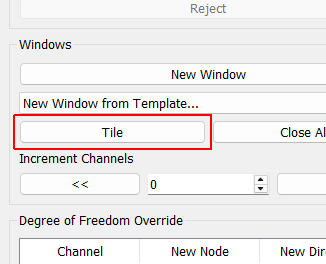
Tile Tile all visualization windows
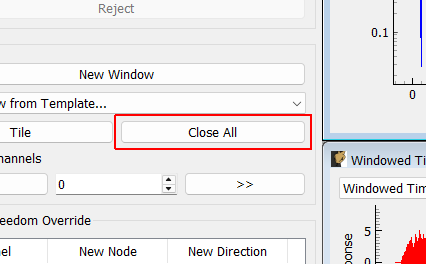
Close All Close all visualization windows.
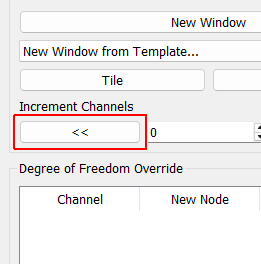
<< (Decrement Channels) Decrement channels in visualization windows by the specified number of channels, except for windows that are locked.
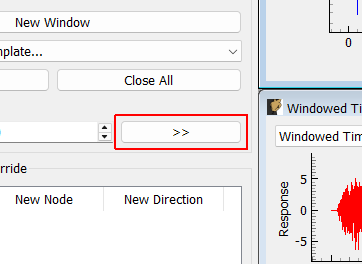
>> (Increment Channels) Increment channels in visualization windows by the specified number of channels, except for windows that are locked.
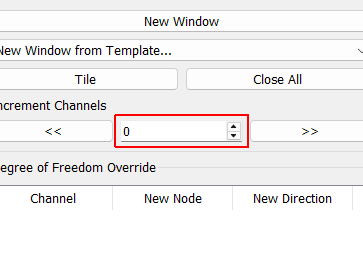
Channel Increment Select the number of channels to increment all windows by. This is useful to quickly move through all channels in a test.
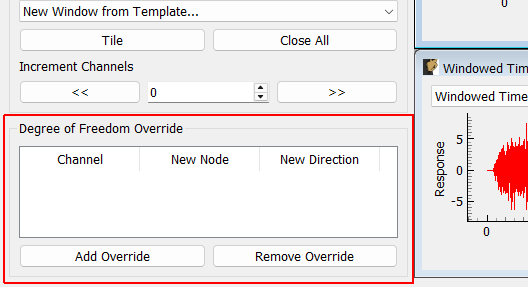
Degree of Freedom Override
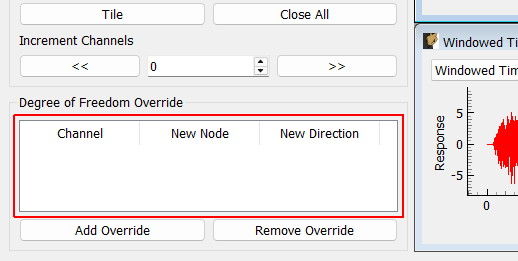
Degree of Freedom Override Table This table can be used during roving hammer testing, or other testing that involves changing the channel degrees of freedom, to change channel names during a test without needing to update the channel table and re-initialize the data acquisition system. The user selects a channel to update and provides a new node number and new direction string. Subsequently acquired data will have degree of freedom information updated in the channel table that gets stored to the disk with the data.
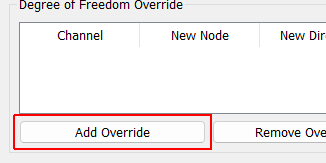
Add Override Adds an override to the channel table to change the degree of freedom associated with a given channel. Useful for roving hammer or roving accelerometer testing.
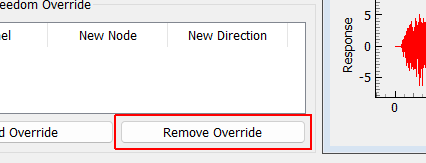
Remove Override Removes the selected channel override.
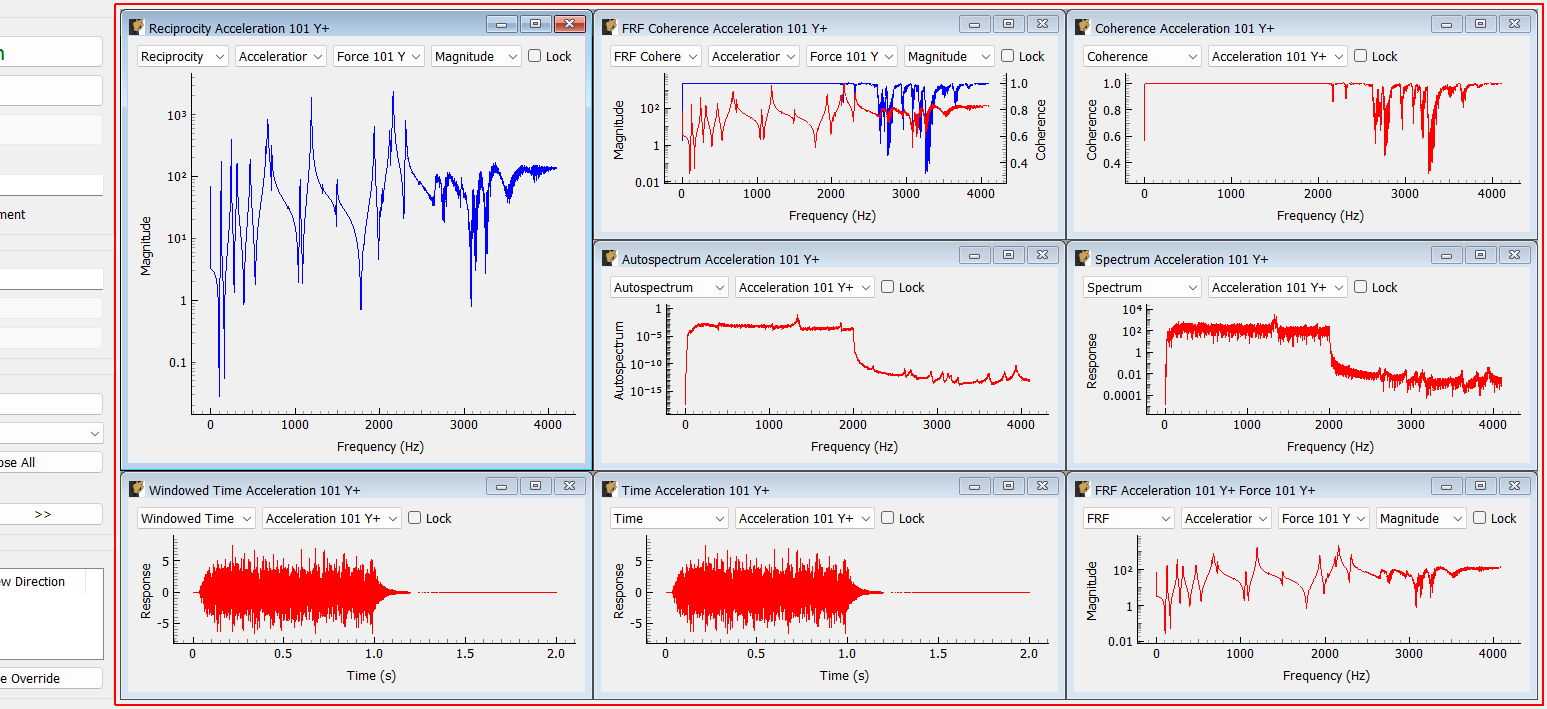
Display Area New windows will be placed in this area, allowing flexible visualization of modal data during the test.
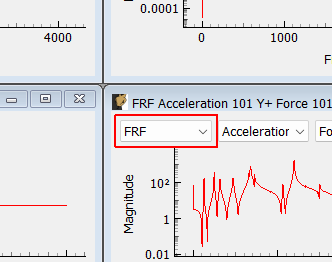
Signal Type Selector Select the type of data to look at.
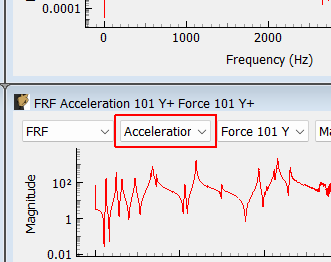
Channel Selector Select the channel to look at.
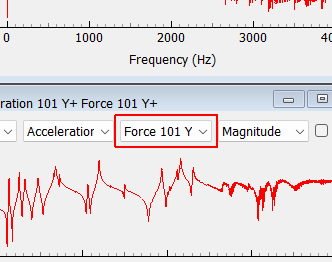
Reference Channel Selector Select the reference to look at.
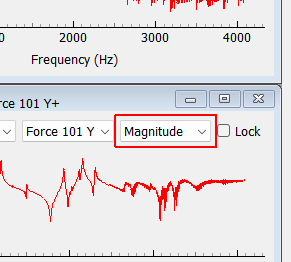
Data Display Selector Select how the data is displayed.
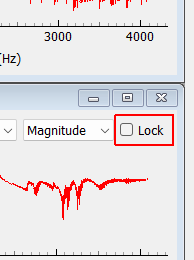
Lock Locks the channel so it does not update when the increment channels buttons are clicked. Channel can still be manually changed.