Saving and Loading FIREWHEEL Experiments
This tutorial demonstrates how to save the state of a running FIREWHEEL experiment and later restore it using the save and load Helpers.
In this tutorial, your goal is to create a known-good experiment state, make an intentional change inside a VM, save that state, then later introduce an unwanted change and use the save/load workflow to restore the experiment back to the previously saved state.
This workflow is useful when you want to preserve a configured experiment for later reuse, checkpoint an experiment before trying a risky change, recover from a mistake made during manual VM interaction, or restore a saved experiment in another compatible environment after appropriate validation.
By the end of this tutorial, you will have demonstrated that FIREWHEEL can restore an experiment back to a known saved point rather than forcing you to rebuild and reconfigure everything manually.
Prerequisites
Before starting, ensure that:
FIREWHEEL is installed and functioning correctly.
You have minimega version 3.0.1 or later installed, and it is configured to use absolute paths for backing images when creating snapshots (that is, with the
MM_ABSSNAPSHOT=trueconfiguration option). See Configuring minimega for more details.The necessary repositories and VM images for the chosen experiment are installed.
You can access running VMs through miniweb or VNC.
The testbed is in a clean state.
As with many FIREWHEEL tutorials, it is a good idea to begin by restarting the environment:
$ firewheel restart
What You Will Do
In this tutorial, you will first create and save a known-good checkpoint of a running experiment. After saving, the current experiment is paused, which gives you a natural point to either stop or resume and continue working from that state.
The first diagram below shows that save workflow.
![digraph save_workflow {
rankdir=LR;
labelloc="t";
label="FIREWHEEL Save Workflow";
fontsize=18;
node [shape=box, style="rounded,filled", fillcolor="#EAF2F8", color="#4A6FA5", fontname="Helvetica"];
edge [color="#4A6FA5", penwidth=1.5];
running [label="Running\nExperiment"];
modify [label="Make and Verify\nVM Change"];
save [label="Save State\nfirewheel save"];
backup [label="Backup Directory\n(and optional .tar)"];
paused [label="Experiment Paused\nAfter Save"];
resume [label="Manual Resume\nfirewheel vm resume --all"];
continue [label="Continue Working\nfrom Saved Checkpoint"];
running -> modify;
modify -> save;
save -> backup;
save -> paused;
paused -> resume;
resume -> continue;
}](../_images/graphviz-e2ac9d9b64a1ccb32280a58a52e22974fc5172a4.png)
Later in the tutorial, you will restore that saved checkpoint. By default, the load Helper automatically resumes the restored experiment, though you can also request that it come back paused for inspection before manually resuming it.
The second diagram below shows that restore workflow.
![digraph load_workflow {
rankdir=LR;
labelloc="t";
label="FIREWHEEL Load Workflow";
fontsize=18;
node [shape=box, style="rounded,filled", fillcolor="#EAF2F8", color="#4A6FA5", fontname="Helvetica"];
edge [color="#4A6FA5", penwidth=1.5];
backup [label="Saved Backup\nDirectory or Archive"];
dryrun [label="Optional Validation\nfirewheel load --dry-run"];
load [label="Restore State\nfirewheel load"];
resumed [label="Restored Experiment\nAutomatically Resumed"];
paused [label="Optional Paused Restore\nfirewheel load --paused"];
resume [label="Manual Resume\nfirewheel vm resume --all"];
verify [label="Verify Saved State\nWas Restored"];
backup -> dryrun [style=dashed, label="optional"];
backup -> load;
dryrun -> load;
load -> resumed;
load -> paused [style=dashed, label="optional"];
resumed -> verify;
paused -> resume;
resume -> verify;
}](../_images/graphviz-a81aa28463e2153b4db70ae31c3065834c16a45b.png)
Note
Before using save and load, keep the following operational expectations in mind:
save pauses the currently running experiment when the save completes. To continue working in that same experiment after saving, run:
$ firewheel vm resume --all
load requires that no FIREWHEEL experiment is currently running. In most cases, users should first reset the testbed with:
$ firewheel restart
A restore reuses existing files or directories automatically when their contents are identical to the backup. The
load --forceoption is only required when an existing restore destination differs from the backup.If a restore fails after making partial changes, the recommended recovery is to reset the environment and try again:
$ firewheel restart hard
Portability Status
The table below summarizes the current validation status for common save/load deployment transitions.
Restore path |
Current status |
|---|---|
single-node -> single-node |
tested and verified |
single-node -> cluster |
not yet supported |
cluster -> single-node |
not yet supported |
cluster -> cluster (same size) |
not yet supported |
cluster -> cluster (different sizes) |
not yet supported |
When restoring into any environment other than the verified single-node to
single-node case, it is strongly recommended to run load --dry-run
first and carefully validate VM behavior and VM Resource handling after the
restore completes.
Launching an Experiment
For this tutorial, we will use the Running the Router Tree Topology experiment because it is small, familiar, and provides accessible Ubuntu VMs for verification.
Launch the experiment with:
$ firewheel experiment tests.router_tree:3 minimega.launch
Once the experiment is running, verify that the VMs are up:
$ firewheel vm mix
                                        VM Mix
┏━━━━━━━━━━━━━━━━━━━━━━━━━━━━━━━━━━━┳━━━━━━━━━━━━━┳━━━━━━━━━━━━━━━━━━━┳━━━━━━━┓
┃ VM Image                          ┃ Power State ┃ VM Resource State ┃ Count ┃
┡━━━━━━━━━━━━━━━━━━━━━━━━━━━━━━━━━━━╇━━━━━━━━━━━━━╇━━━━━━━━━━━━━━━━━━━╇━━━━━━━┩
│ ubuntu-16.04.4-server-amd64.qcow2 │ RUNNING     │ configured        │ 4     │
├───────────────────────────────────┼─────────────┼───────────────────┼───────┤
│ vyos-1.1.8.qc2                    │ RUNNING     │ configured        │ 8     │
├───────────────────────────────────┼─────────────┼───────────────────┼───────┤
│                                   │             │ Total Scheduled   │ 12    │
└───────────────────────────────────┴─────────────┴───────────────────┴───────┘
You should see a mixture of Ubuntu and VyOS VMs in the experiment.
Connecting to a VM and Making a Change
Now connect to one of the Ubuntu VMs.
For this tutorial, we will use host.root.net.
You can connect using miniweb or VNC as described in Using miniweb.
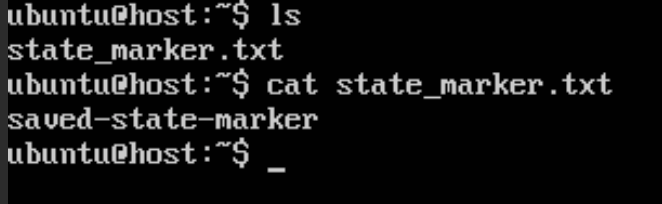
Once logged in, create a marker file that will be easy to verify later:
$ echo "saved-state-marker" > state_marker.txt
Now verify that the file exists:
$ cat state_marker.txt
You should see:
saved-state-marker
This file represents a useful change that you want to preserve.

Saving the Experiment
Now that the VM contains a known-good change, save the experiment.
For example:
$ firewheel save --name router_tree_saved_state
────────────────────────────────────── Phase 1: Save Namespace ──────────────────────────────────────
Waiting for namespace save to complete... (fw-node: 12/12) ━━━━━━━━━━━━━━━━━━━ 12/12 0:00:00
✓ Namespace saved successfully
✓ Final ns save host status recorded
────────────────────────────────── Phase 2: Collect Restore Data ───────────────────────────────────
✓ Saved minimega tap commands (e.g., a control network)
✓ Saved VM mapping
✓ Saved experiment time
Copying schedule files... ━━━━━━━━━━━━━━━━━━━ 12/12 0:00:00
✓ Pruned and saved schedule files (12)
✓ Copied VM resource handler launch file
✓ Wrote manifest metadata
────────────────────────────────────────── Save Complete ───────────────────────────────────────────
✓ Experiment save completed successfully
  Saved Backup
  Experiment name            router_tree_saved_state
  Backup directory           /scratch/minimega/files/saved/router_tree_saved_state
  Schedule files             12
  launch_cmds.mm             Included
  ImageStore cache           Not included
  VmResourceStore cache      Not included
  Archive                    Not created
Next step: Restore this backup later with firewheel load /scratch/minimega/files/saved/router_tree_saved_state
or use firewheel vm resume --all to resume the current experiment.
This writes a backup directory in the minimega files store. In this example it is:
/scratch/minimega/files/saved/router_tree_saved_state
If you would also like a tar archive, you can instead use:
$ firewheel save --name router_tree_saved_state --archive
Note
The save --archive option currently creates an uncompressed
.tar archive. The load Helper can restore from .tar,
.tar.gz, or .tgz files.
For large experiments, if you want a compressed archive for transfer or
storage, it is generally better to compress the resulting tarball afterward
using external tools. Highly parallel compression tools such as pigz are
often a good choice for large backups.
For example, to compress using all available CPU cores while keeping the original tarball:
$ firewheel save --name my_experiment --archive
$ pigz -k -p "$(nproc)" my_experiment_backup.tar
This produces my_experiment_backup.tar.gz, which can later be restored
with load.
If you want to include the backing images and VM resources cache content, use:
$ firewheel save --name router_tree_saved_state --complete --archive
At this point, FIREWHEEL has saved the entire experiment state.
Introducing an Unwanted Change
At this point, you have saved a known-good checkpoint of the experiment. As part of the save process, the experiment is paused so that you can either preserve that saved state and stop working, or intentionally continue working from the current experiment as a new “fork” of that state. In practice, after saving, you now have two choices:
Reset the testbed and later restore the saved checkpoint with load.
Resume the currently running experiment and continue making additional changes.
For this tutorial, we will choose the second option so that we can intentionally move the running experiment away from the saved state and later prove that load restores the earlier checkpoint. Resume the experiment with:
$ firewheel vm resume --all
Resumed VM Resource Handling for 12 VMs.
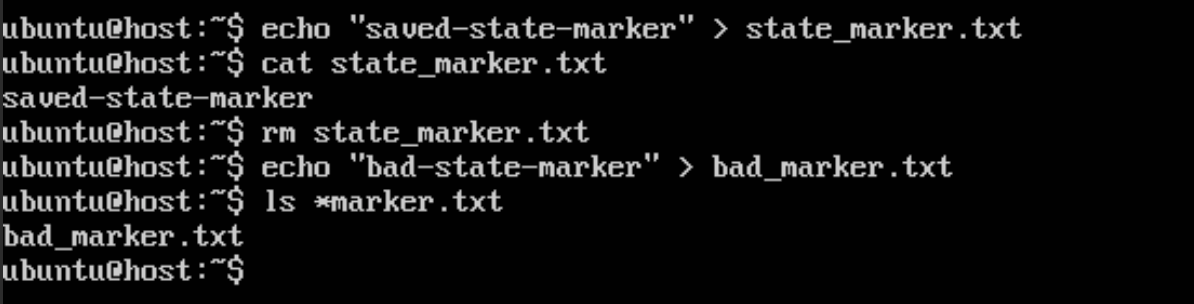
Now return to host.root.net and delete the saved marker file:
$ rm -f state_marker.txt
Then create a different file indicating that the VM is now in an unwanted state:
$ echo "bad-state-marker" > bad_marker.txt
Verify that the original saved marker is gone and the unwanted marker exists:
$ ls *marker.txt
You should see only bad_marker.txt.
At this point, the running experiment no longer matches the saved checkpoint. This is exactly the kind of situation where save/load is useful: you made additional changes after saving, decided you do not want to keep them, and now want to return the experiment to the previously saved state.
Resetting the Testbed
Before using load, the testbed must not already be running another FIREWHEEL experiment. Reset the environment:
$ firewheel restart
Loading the Saved State
Now that the testbed is cleared, we want to load our previously saved state. First we will validate the backup before performing the actual restore. If you saved a directory, you can provide either the full path to that directory or just the saved experiment name. If only the name is provided, load will look for it in the minimega saved files directory. For example:
$ firewheel load router_tree_saved_state --dry-run
─────────────────────────────────── Phase 1: Read Backup Source ────────────────────────────────────
Source: /scratch/minimega/files/saved/router_tree_saved_state
✓ Using existing backup directory
───────────────────────────────────── Phase 2: Validate Backup ─────────────────────────────────────
Validated Backup
Root directory             /scratch/minimega/files/saved/router_tree_saved_state
Experiment name            router_tree_saved_state
FIREWHEEL version          2.11.1.dev13
Format version             1
Created at                 2026-04-30T18:03:10.009534+00:00
Schedule count             12
Has launch_cmds.mm         True
Has ImageStore cache       False
Has VmResourceStore cache  False
✓ Backup validated
✓ No active FIREWHEEL experiment is running
✓ Restore destinations validated
───────────────────────────────────────── Dry Run Summary ──────────────────────────────────────────
✓ Dry run completed successfully
Planned Restore
Experiment                 router_tree_saved_state
Saved VM files             /scratch/minimega/files/saved/router_tree_saved_state
VM mapping                 /scratch/minimega/files/saved/router_tree_saved_state/vm_mapping.json
Schedules                  /scratch/minimega/files/saved/router_tree_saved_state/schedules
Launch VMs via             /scratch/minimega/files/saved/router_tree_saved_state/launch.mm
Launch handlers via        /scratch/minimega/files/saved/router_tree_saved_state/launch_cmds.mm
ImageStore cache           Not present
VmResourceStore cache      Not present
Experiment time            Would restore last
↺ Existing identical files/directories would be reused without overwrite
✓ No changes were made
This dry run gives you a chance to confirm that the restore is likely to work before FIREWHEEL makes any changes to the testbed. In particular, it checks that the backup layout and manifest are valid, that the restore targets are suitable, and that the restore could proceed successfully in the current environment. This is especially helpful when working with an older backup or when restoring into an environment where some files may already exist.
After confirming that the dry run succeeds, perform the actual restore. If you saved a directory:
$ firewheel load router_tree_saved_state
─────────────────────────────────── Phase 1: Read Backup Source ────────────────────────────────────
Source: /scratch/minimega/files/saved/router_tree_saved_state
✓ Using existing backup directory
───────────────────────────────────── Phase 2: Validate Backup ─────────────────────────────────────
Validated Backup
Root directory             /scratch/minimega/files/saved/router_tree_saved_state
Experiment name            router_tree_saved_state
FIREWHEEL version          2.11.1.dev13
Format version             1
Created at                 2026-04-30T18:03:10.009534+00:00
Schedule count             12
Has launch_cmds.mm         True
Has ImageStore cache       False
Has VmResourceStore cache  False
✓ Backup validated
✓ No active FIREWHEEL experiment is running
✓ Restore destinations validated
────────────────────────────────────── Phase 3: Restore Data ───────────────────────────────────────
↺ Reused existing saved VM files
✓ Restored VM mapping (12 entries)
✓ Restored schedules (12 files)
─────────────────────────────────────── Phase 4: Launch VMs ────────────────────────────────────────
✓ Started saved VMs
─────────────────────────────────── Phase 5: Restore Experiment Time ───────────────────────────────
✓ Restored experiment time
─────────────────────────────── Phase 6: Launch VM Resource Handlers ───────────────────────────────
✓ Rebuilt VM resource handler socket paths for 12 VMs
✓ Started VM resource handlers (12 processes launched)
✓ Restored schedules and resumed VM Resource handling automatically
───────────────────────────────────────── Restore Complete ─────────────────────────────────────────
✓ Experiment restore completed successfully
Restore Result
Experiment                 router_tree_saved_state
Saved VM path              /scratch/minimega/files/saved/router_tree_saved_state
Saved VM files             Reused
VM mapping entries         12
Schedules                  12 copied / 0 reused
ImageStore cache           Not present
VmResourceStore cache      Not present
VMs launched               Yes
VM handlers launched       Yes (12 processes)
Experiment time            Restored
Note
When using firewheel load --paused, resume the experiment manually when ready with:
$ firewheel vm resume --all
The load Helper validates the backup, restores the saved VM files and metadata, relaunches the experiment, restores schedules, and rebuilds VM Resource handler socket paths if necessary.
Verifying the Restored State
Once the restored experiment is running, reconnect to host.root.net and check the marker files.
First, verify that the saved marker file has been restored:
$ cat state_marker.txt
You should again see:
saved-state-marker
Next, verify that the later unwanted change is gone:
$ ls bad_marker.txt
This file should no longer exist. This confirms that the experiment was successfully restored to the previously saved checkpoint rather than preserving the later unwanted change.